
Free AI Video Makers Without Watermarks: You try a “free” video tool, spend an hour editing, hit export, and a giant logo sits in the middle of your work. Painful.
An AI video maker is any editor that uses AI to handle parts of the job for you, like cutting clips, adding captions, or building scenes from a script. For YouTubers, small business owners, students, and social media creators, that means faster videos and less tech stress.
This guide only covers tools you can actually use for free, with export options that do not force a watermark when you stay on their free plan rules. The picks are based on simple criteria: no forced watermark on the final video, easy interface, solid quality, fair export limits, and basic safety, like clear terms and login options you already trust.
Let’s start by picking the right type of tool, so you do not waste hours on the wrong one.
How to Pick a Free AI Video Maker Without Getting Stuck With Watermarks
Choosing a free AI video maker is a bit like picking a used car. It looks shiny at first, but you need to check what is under the hood before you commit time to it.
For beginners, five things matter most: no watermark, simple layout, your language, useful templates, and fair limits.
If a tool hides its watermark rules, treat that as a warning. Look for words like “no logo on exports” or “watermark only on premium assets.” Good tools explain what is free and what is not in clear language.
A clean, drag-and-drop layout matters more than dozens of fancy features. You should be able to trim, move clips, and add text without guessing where buttons are. If you feel lost after ten minutes, pick another tool.
Language support is key if you create in something other than English. Check if it can auto-caption and text-to-speech in your language. Bad captions make your video look cheap.
Templates and export limits decide how far you can go before you feel blocked. Look at how many videos you can export each month, the max video length, and the top resolution.
Read Also: Best AI course for beginners
Key features that matter for beginners and small creators
For most people, a strong free AI video maker should offer:
- No forced watermark when you export a video inside the free plan rules
- HD export, at least 720p, ideally 1080p
- Simple drag-and-drop editing on a clear timeline
- Auto subtitles from your voice or voiceover
- AI text-to-video or script-to-video to build scenes fast
- A basic stock library for clips, images, and music
- Aspect ratios for YouTube (16:9), TikTok/Reels (9:16), and square posts
These features save time and help your videos look polished, even if you have zero editing experience.
Watermark traps and hidden limits to watch out for
Free plans often come with tricks.
Some tools look clean in the editor, then add a logo when you download. Others give you a “free trial” that switches to paid after a few exports. A few only give SD quality for free, so your video looks blurry on big screens.
Quick checks that help:
- Read the pricing or plans page before you sign up
- Search the tool’s help center or FAQs for the word “watermark”
- Export a 10-second test video before you edit a full project
If you cannot find a straight answer about watermarks, choose another tool.
Best Free AI Video Makers With No Watermark: Top Picks Tested
These tools have real free plans that can export without a forced watermark, as long as you follow their free usage rules and avoid paid-only assets.
Tool 1: Free AI video maker for YouTube explainers and talking head clips
A strong option here is Clipchamp by Microsoft. It runs in your browser and works well for YouTube explainers and talking head videos.
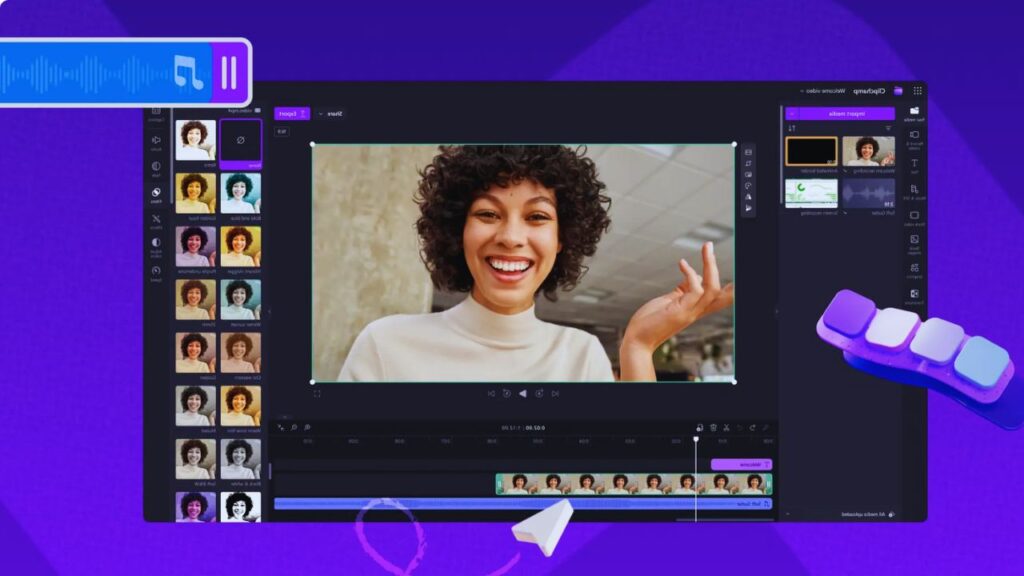
Clipchamp uses AI to auto-caption your speech, suggest cuts, and create text-to-speech voiceovers. You can drop in your webcam recording, add B-roll from the stock library, and line everything up on a simple timeline. Templates help you build hook, body, and outro sections without starting from scratch.
On the free plan, you can export videos in HD without a forced watermark when you use only free assets. Premium clips, audio, or filters may add a watermark, so stick to the free items and you are safe. There are limits on some advanced features and brand tools, but not on basic exports.
Clipchamp works best for creators who want more control over pacing and structure, while still getting AI help on captions and voice.
Tool 2: Free AI video maker for TikTok, Reels, and short social clips
For fast vertical content, CapCut is a favorite with TikTok and Reels creators. It has mobile apps and a web version, which makes it perfect for quick posts.
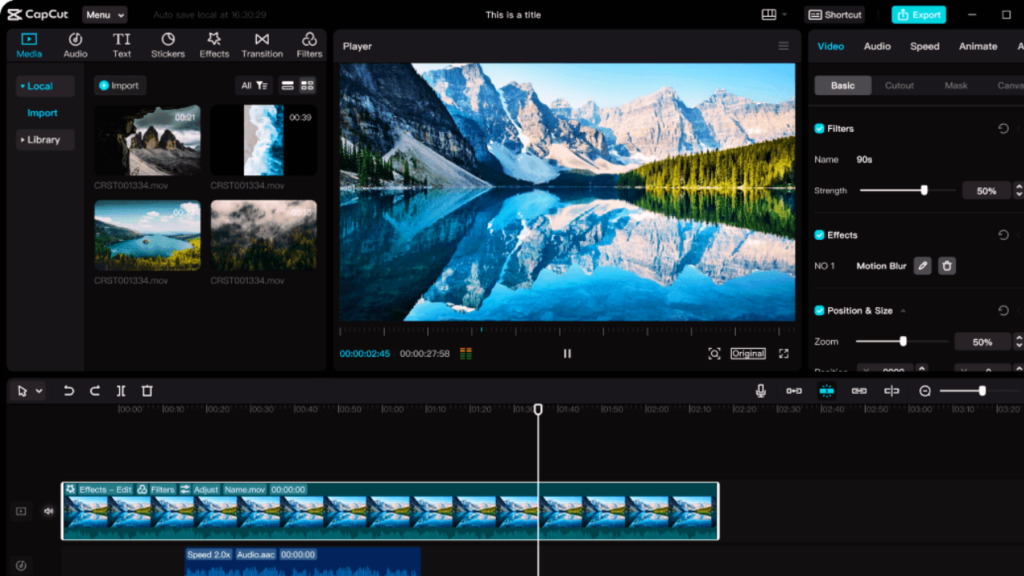
CapCut leans on AI for a lot of time savers: auto-captions, smart background removal, beat sync that cuts clips to the music, and face tracking for effects. You pick a template, drop in your clips, and the app builds a short edit that you can tweak.
The free plan lets you export without a watermark. Some templates add a tiny CapCut end card, but you can delete that clip on the timeline before export. Most effects and filters are free, though some premium items are locked.
CapCut works best if you post often and care more about speed and trends than deep, frame-by-frame editing. It is great for day-in-the-life videos, quick tips, and product teasers.
Read Also: Understanding the Differences Between Gemini Nano, Pro, and Ultra
Tool 3: Free AI slideshow and text-to-video maker for school and business
For slideshow-style videos and simple explainers, Canva is a strong pick. It is ideal for teachers, students, and small businesses that already use slides or documents.
Canva can turn text into video scenes using templates. You paste your script or bullet points, and the tool builds pages with stock images, icons, and simple animations. AI can also help with text-to-speech voiceovers in different tones.
On the free plan, you can export videos without a watermark when you use only free elements. Paid photos, videos, and audio show a small watermark in the editor, so you either swap them out for free items or pay before export. The free plan is best for short or standard-definition videos and basic branding, like simple color and font choices.
Canva shines for lesson summaries, pitch videos, event promos, and internal training where you care more about clarity than complex editing tricks.
Quick Tips to Get Pro Results From Free AI Video Makers
Good tools help, but how you use them matters more. A clear script and a bit of personal style can make a free video look like it came from a pro editor.
Write clear prompts and short scripts so the AI does not get confused
AI works best when you tell it exactly what you want.
In your prompt or script, include: topic, target viewer, tone, and length. For example: “60-second TikTok for beginner runners, friendly tone, explain 3 warm-up tips.”
Keep sentences short and clear. Write like you speak. Break your script into lines or short paragraphs, then paste it into the tool so it can map each part to a scene.
When the AI builds your video, treat that as a first draft. Watch it once, trim boring parts, fix awkward captions, and adjust timing. Small edits can double the quality.
Add your personal style so your video does not look like everyone else’s
AI templates can start to all look the same. You fix that with human touches.
Simple moves that help:
- Record a quick voiceover instead of only using robot voices
- Add your logo in a corner, but keep it small
- Pick 2 or 3 brand colors and stick to them in every video
- Use the same fonts on titles and subtitles across projects
Mix AI-generated clips with real footage from your life, your classroom, or your business. A shot of your face, your product on a desk, or your own screen share makes the video feel real and more trustworthy.
Conclusion
You do not need a big budget to create sharp videos. With the right free AI video maker, you can export clean clips without a forced watermark, as long as you respect each tool’s free plan limits.
Start by picking one tool that fits your main goal, whether that is YouTube explainers, TikTok clips, or slideshow-style school and business videos. Run a small test project so you learn its quirks before you commit to a long script.
Then write a short script today, open one tool from this list, and build your first AI-powered video. Hit publish, learn from how people react, and your next free video will be even better.






1 thought on “Best Free AI Video Makers Without Watermarks (Real 2025 Guide)”